


What is Schema markup and what is JSON-LD
When we talk about Schema, schema markup, structured data or structured data markup, we are referring to the same concept: a system of standardised “tags” that allow you to describe your website precisely. These tags tell search engines what type of business you are, what services you offer, what you sell, how your information is organised, and what each page represents.
This markup, also known as schema markup, is usually implemented in JSON-LD format, which is the technical way these tags are written within a website so that Google, Bing or AI systems can read them without ambiguity. Put simply: Schema is the meaning; JSON-LD is the way of expressing it.
When search engines correctly interpret this markup, they can generate enhanced results — the well-known rich snippets — and classify your site more clearly, something that in SEO is referred to as Schema SEO. By combining well-crafted content with precise structured data, you help both traditional algorithms and AI models to understand your website more consistently and without ambiguity.
What type of data can Schema interpret
Schema is designed to allow a website to explicitly describe almost any relevant information about its content, structure and activity. Search engines interpret this data as clear, organised signals that help them understand the context of your site without having to rely solely on text or HTML.
In practical terms, Schema can interpret:
Data about your business or entity
Information that defines who you are:
- Company name
- Type of business (agency, shop, professional, association…)
- Address, phone number, email
- Service area
- Social media profiles
- Logo and main image
- Brand identity
This block is usually implemented using Organization, LocalBusiness o ProfessionalService.
Data about your services
It allows you to clearly describe what you offer:
- Service name
- Description
- Price or price range (optional)
- Target audience
- Category
- Availability
Here, types such as Service are used, along with pages defined as WebPage or ServicePage.
Product data (if you have a shop or catalogue)
Schema can interpret:
- Product name
- Brand
- Price
- Availability
- Variant or model
- Reviews and ratings
- Product images
Google uses Product, Offer and AggregateRating to structure this information.
Data about your internal pages
Each type of page can be described:
- Home (WebSite + WebPage)
- Contact page (ContactPage)
- Services page (ServicePage)
- FAQs (FAQPage)
- About us (AboutPage)
- Blog or news (BlogPosting / Article)
This helps Google and AI systems better understand the intent of each URL.
Editorial content data (articles, guides, news)
AI systems value this highly:
- Title
- Author
- Publication date
- Category
- Featured. image
- Summary
- Main topic
This is implemented using Article or BlogPosting.
Event, video and image data
Schema can interpret enriched information such as:
- Event date, location and time
- Videos hosted on YouTube or other platforms
- Key images on the page
- Relevant multimedia content
Using types such as Event, VideoObject and ImageObject.
FAQs and step-by-step guides
Two of the formats best understood by search engines and AI:
- FAQPage for questions and answers
- HowTo for structured tutorials
Both make it easier for your content to appear as a direct answer.
Data about people or professionals
In projects where there are relevant individuals:
- Name
- Role/position
- Social profiles
- Education
- Image
- Relationship with the company
Using the Person type.
Awards, achievements or certifications
The following fields are perfectly valid withinOrganization, Person, LocalBusiness or ProfessionalService:
- Award → Awards received
- MemberOf → Associations you belong to
- Affiliation → Collaborations and professional links
- Accreditation → Official certifications
- HasCredential → Diplomas and recognised training
Downloadable Schema template + real example
If you want to implement structured data on your website without getting lost in technical concepts, this template makes it easy. We have created a professional Schema data template for WordPress, designed to help you organise all the information that you will later convert into valid JSON-LD markup for Google, Bing and AI search systems.
In it, you can gather — in a structured way — all the data involved in good Schema: business identity, page structure, services, products, articles, FAQs, multimedia, internal search, team, awards, certifications and authority signals. Once completed, you will only need to convert it into JSON-LD using an automatic generator, a plugin or an AI model such as ChatGPT.
In addition to the blank template, we provide a fully completed real example using the data from Marabelia. This example serves as a visual guide to understand how each field should be filled in, and also as a perfect base for creating your own AI prompts. You can copy the structure, adapt it with your own data, and ask ChatGPT to generate the final Schema accurately and in a fully valid format.
Download the template, review the example, and start creating clean, structured Schema ready to improve the semantic clarity and understanding of your website in search engines and AI systems.
How to convert the Excel file into Schema code for your WordPress website?
Once you have completed the Excel template, the next step is to transform all that information into JSON-LD code, which is the official format recommended by Google for structured data. The Excel file is not uploaded to WordPress; it simply organises the information that you will later use to generate your Schema.
Step 1: Convert the template into Schema code using AI
Once your template is completed, open an AI tool —such as ChatGPT, Gemini, Claude or Perplexity— and ask it to convert your data into valid JSON-LD. If you use Chat GPT it will ask you to upload the file in CSV, PDF or plain text format.
Simply upload the information in any of these formats and use an appropriate prompt:
Generate acomplete Global Schema for my website in a single JSON-LD block, using only the real data from my template. Ignore all empty fields and do not invent anything. The script must include: Organization: identity data, address, contact details, logo, image, social media, awards, certifications, memberships, accreditations, specialities and team. Global catalogue: general list of services and products using
makesOfferandhasOfferCatalog, only as general offers (without page-level detail). WebSite: basic site information and its publisher. Rules: Everything must be within a single@graphinside the same JSON-LD. Do not generate page-level schemas. I only want the final JSON-LD block, without explanations. Here is my data: <<< ATTACH THE CSV, PDF, WORD FILE OR PLAIN TEXT DATA >>>
The AI will return a block similar to this:
This is the block you will insert into your WordPress site.
If you want a Schema that works and validates 100%, you can also add a reference Schema to your prompt. We provide a fully validated Schema template that you can download HERE (JSON BASE MODEL), unzip, and attach to the AI adding this at the end of your prompt:
I am attaching a validated JSON-LD model from another company as a reference: copy its structure exactly and only replace the values with my company data.
What type of code is the Schema generated by AI?
The Schema generated by AI is written in JSON-LDJSON-LD, a data format designed for Google and AI systems to understand your website’s information. It is not HTML, not PHP, and not executable JavaScript. It is simply a block of structured data that the browser does not display and that WordPress does not interpret: only search engines read it.
By nature, this type of code does not affect the website’s appearance, does not interact with content, and does not require programming. It simply needs to be present on the page so that search engines can process it.
GBecause of this, JSON-LD can easily be added using a scripts plugin, the theme’s script panel, a child theme, or an HTML block within the relevant page, depending on your needs.
Step 2: Integrate the AI-generated Schema into your WordPress site
Once your JSON-LD code is ready, you can insert it into your website in different ways depending on the type of markup and your level of customisation. Since this code does not affect design or execute functions, it only needs to appear in the final HTML of the page for Google and AI systems to read it.
 Option A (¡recommended!): Global integration across the entire site
If the Schema describes general information —such as Organization, WebSite or business identity— it should be placed in a location that loads on every page.
Common options in WordPress:
- Theme header scripts area (Flatsome, Astra, GeneratePress, Divi…)
-
Plugins such as WPCode or Code Snippets
-
A child theme, if you prefer managing it via code.
This ensures Google finds it across all URLs on your site.
⚠️ Important! JSON-LD format: ¿HTML o PHP?
Before generating your Global Schema with AI, you need to decide how you will insert it into WordPress.
There are two possible scenarios:
- Paste as HTML o scripts directly ¡Recommended!
Many WordPress themes include a dedicated area for scripts or HTML. If available, this is ideal, as you can insert the Schema in HTML format inside a
<script type="application/ld+json">tag — the simplest and most convenient method.
If your theme does not support this, you can install plugins such as WP Header and Footers or Header Footer Code Manager.
- Paste in PHP format (Optional)
Some plugins, such as Code Snippets (free version), do not allow HTML or scripts. In that case, the AI should generate the Schema inside a PHP function that automatically prints it in the<head>of the site. This is equally valid but requires a different format.
To avoid errors and make things easier —especially if you are not familiar with coding— this guide includes two different prompts: one for HTML format and one for PHP. Both use the same data but are adapted to each method.
From here, simply choose the prompt that matches where you will insert your Schema. We recommend the HTML/script option.
PROMPT Option 1 and recommended (HTML):
Generate my Global Schema n a single JSON-LD block within a
<script type="application/ld+json">tag, using only the real data from the template I will provide.
Ignore empty fields and do not invent information. The Schema must include all provided data within a single@graph.Do not generate individual schemas (Service, Product, FAQPage, WebPage). Only the Global Schema. Return only the HTML block ready to paste into the site header, without additional explanations. Here is my data: <<< ATTACH FILE WITH THE DATA IN AN ADMITTED FORMAT >>>
PROMPT option 2 (PHP):
Generate my Global Schema in JSON-LD format wrapped inside a PHP function that outputs it in the
<head>of the site usingadd_action('wp_head', ...), using only the real data from the template I will provide. Ignore empty fields and do not invent information. The Schema must include all provided data within a single@graph.Do not generate individual schemas (Service, Product, FAQPage, WebPage). Only the Global Schema. Return only the final PHP snippet ready to paste into Code Snippets, without additional text. Here is my data: <<<ATTACH FILE WITH THE DATA IN AN ADMITTED FORMAT >>>
⚠️ Important if you use Yoast SEO (or similar plugins like Rank Math or SEOPress)
If you have Yoast SEO —or any similar SEO plugin— installed, it is very likely already generating its own basic Schema automatically (Organization, WebPage, BreadcrumbList, logo, etc.).
This means that if you add your own custom Schema, Google may see two versions of the same data and mix old and new information.
To avoid duplication, you should disable the plugin’s automatic Schema using a small PHP snippet in a tool like Code Snippets or WPCode (PHP mode), or directly in your functions.php file:
With this adjustment, the plugin will continue working normally for SEO, but only your custom Schema will appear in Google, clean and without conflicts.
Other advanced options
Option B (optional): Page-level integration: services, products, articles and FAQs
When Schema corresponds to specific content —such as a service, a WooCommerce product, an FAQ page or a blog post— it should only be added to that specific URL. This avoids duplication and keeps your semantic structure clean.
You can insert it via:
-
A HTML block in Gutenberg
-
A code module in WPBakery or Elementor
-
A custom field if using ACF or advanced templates
This way, each page has its own clearly defined Schema.
Option C (optional): WooCommerce product integration
WooCommerce WooCommerce generates basic Schema automatically, but if you want full control:
-
You can add your own JSON-LD in the product editor via an HTML block
-
Or use advanced plugins to disable or replace the default Schema
This gives you full control over how Google interprets your product pages.
Final Schema validation (a step you should never skip)
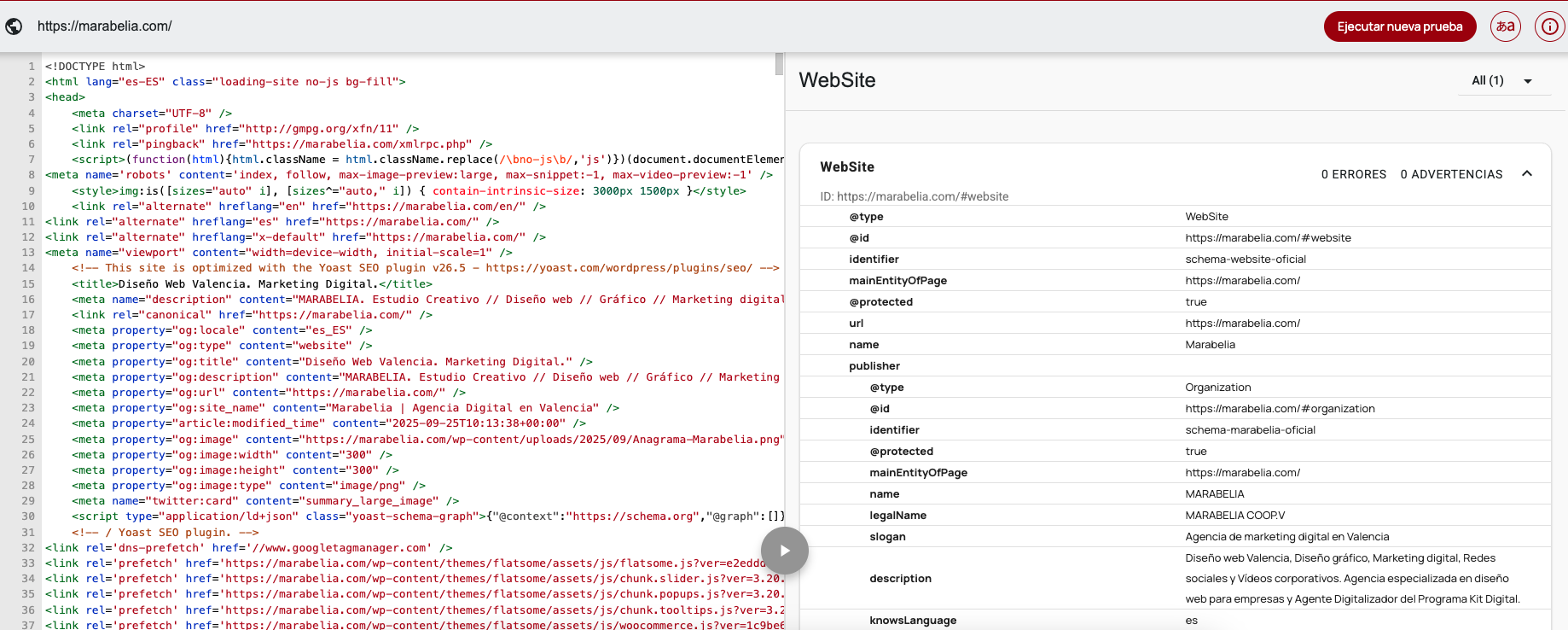
Before considering your Global Schema complete, it is essential to check that Google can read it without errors. The best and simplest way to do this is:
👉 https://validator.schema.org/
This tool displays your JSON-LD clearly, broken down into sections (Organization, WebSite, Services, Products…), allowing you to visually identify:
- Whether the Schema is correctly structured
- Any syntax errors
- Missing required fields
- Whether @id identifiers are properly interpreted
- Any duplication or conflicts with other plugins
You simply need to paste your code into the validator or enter your website URL. Within seconds, you will see a panel showing:
-
✔ Green indicators: everything is correct
-
⚠ Warnings: optional, no impact
-
❌ Critical errors: must be fixed before publishing
Once the validator shows 0 errors, your Schema is ready to be correctly interpreted by search engines such as Google, Bing, ChatGPT, Perplexity and any AI system that consumes structured data.
🛠️ Check Search Console to detect Schema warnings
After implementing your Global Schema and individual page markup, it is important to regularly review Google Search Console.
This tool detects any issues related to structured data: from missing fields or incorrect formats to incompatibilities between Schema types or errors in product and service listings.
Ongoing monitoring allows you to ensure that Google correctly interprets your content, avoiding warnings that could limit your visibility in rich results. Keeping these alerts under control is key to maintaining a strong, clean and effective Schema and technical SEO strategy.
Rich data that elevates your SEO
Implementing a well-structured Global Schema is not just a technical detail — it is a strategic advantage. When you describe your business accurately, search engines and AI systems better understand who you are, what you offer and how your content should be displayed. The result is a clearer, stronger and far more competitive digital presence.
With the data template, the JSON-LD model and the validation tools, you now have everything you need to build clean, reliable and error-free markup. From here, each business can adapt its Schema, update it as the website evolves, and keep it aligned with the new ways in which search — both human and automated — interprets information.